

Submitting and cancelling pull requests
- Chrome Extension
- GitHub Comment
- GitHub Label
Install the Trunk for GitHub Chrome Extension to submit and cancel PRs directly from GitHub without leaving your pull request page.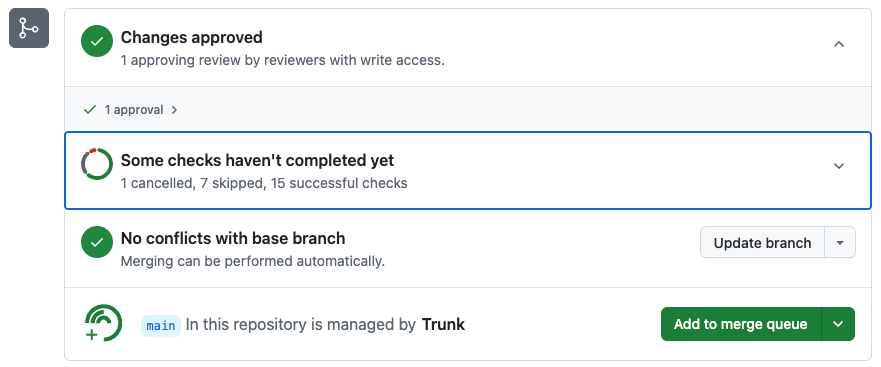
Enqueueing by label
You can configure a GitHub label that, when applied to a pull request, automatically submits it to the merge queue. This lets teams integrate Trunk Merge Queue into existing label-based GitHub workflows and automations without requiring a comment or CLI command.Configure the enqueue label
- Navigate to Merge Queue → [your repository] → Settings.
- Under Enqueue by label, enter the name of the GitHub label you want to use (for example,
merge-queueorready-to-merge). - Save the setting.
The enqueue label only triggers enqueueing when applied to an open PR that is eligible for the queue. PRs that are draft, failing required checks, or otherwise ineligible will not be enqueued.
Removing from the queue
Removing the configured label from a PR dequeues it from the merge queue. You can also use/trunk cancel, the Web App, or the CLI to cancel an in-progress PR.